VPN Login Process
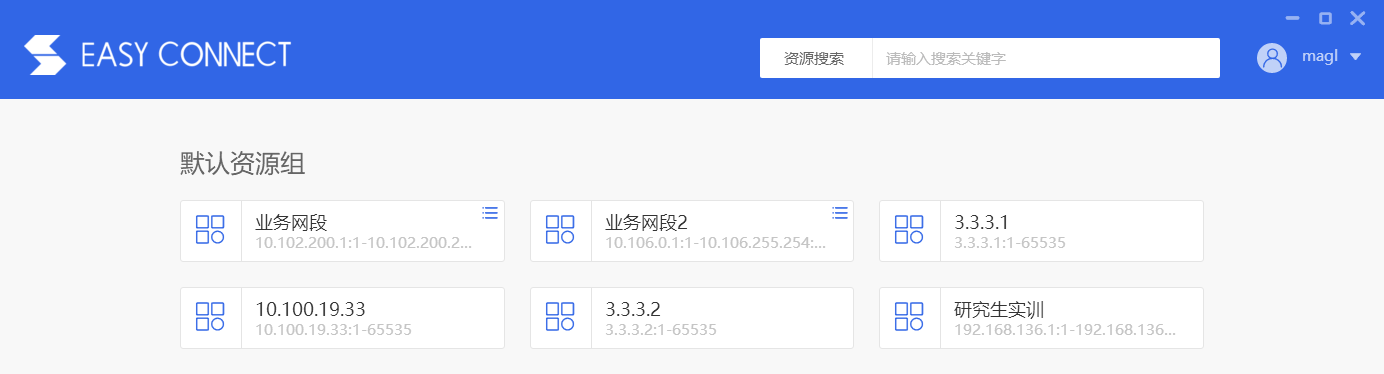
After obtaining the login method, log in using your VPN username and password (Note: Distinguish between VPN and cluster login credentials). Access the following address in your browser, enter your VPN account name and password. Upon successful login, the VPN client tray icon will appear in the bottom right corner of the desktop. The browser will prompt you to download a plugin; after downloading and installing the plugin, available resources will be displayed on the browser's main page.
VPN login address: https://vpn.shanhe.com
The detailed process for logging into VPN on Windows (using Windows 10 as an example) is as follows:
1. Open the browser and enter the address https://vpn.shanhe.com , as shown in the figure.
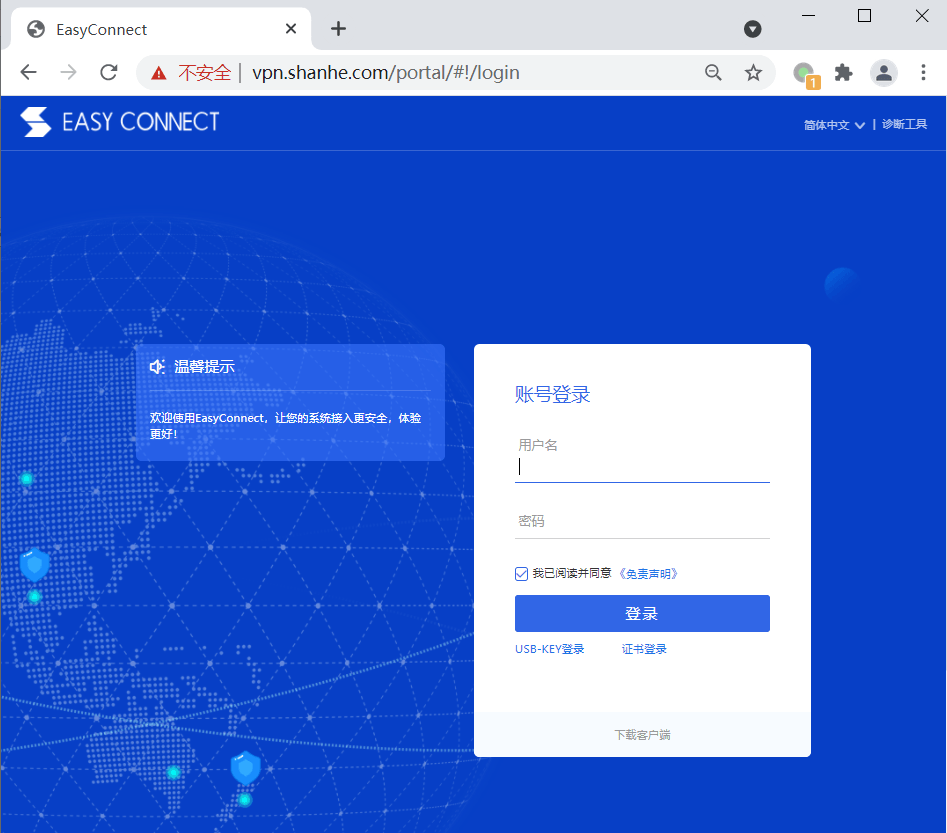
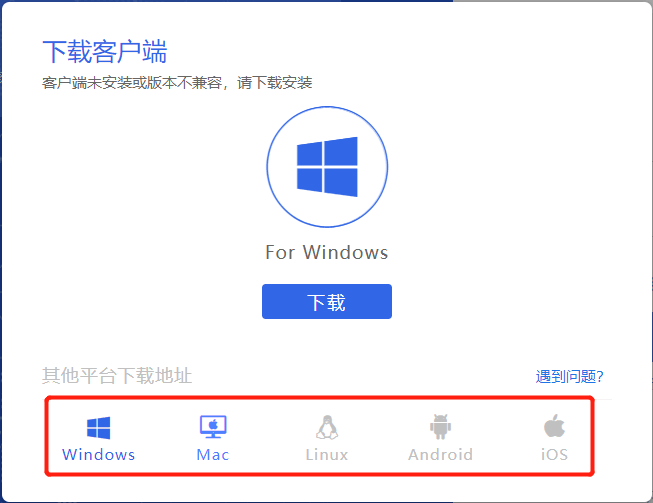
2. Download and install the corresponding client based on the client operating system version (if JavaScript errors occur, please switch browsers.).
3. Open the installed client, enter the VPN login address, and press Enter to log in.
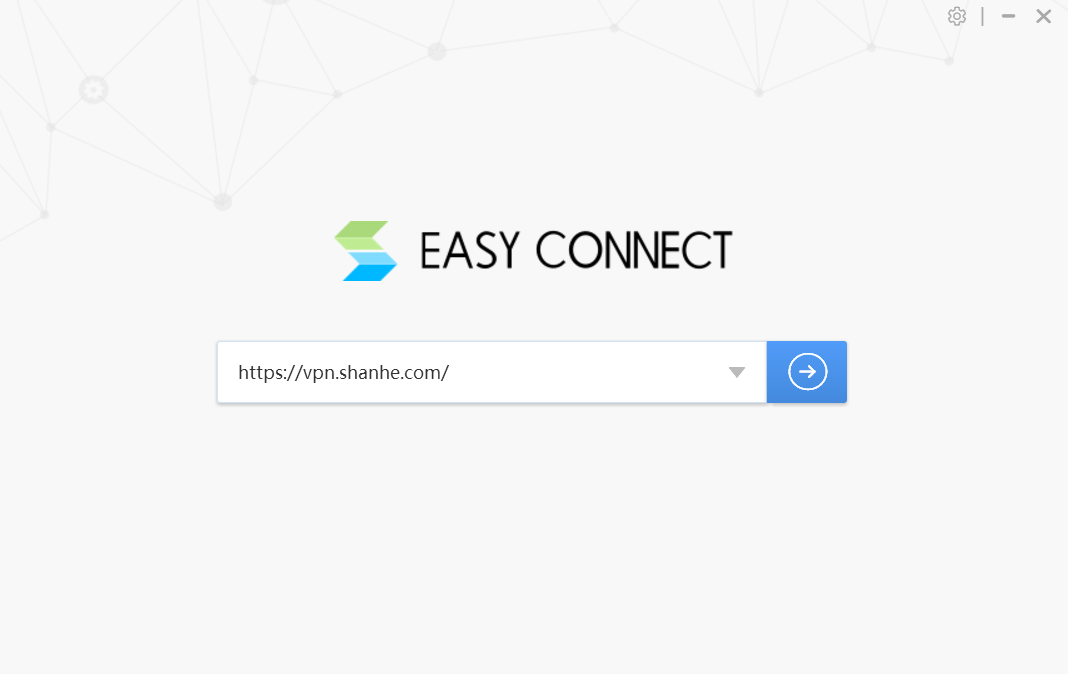
4. Enter user account information to log in.

5. After logging into the VPN, accessible resources are displayed, indicating successful login.