Cluster Login
Demo Video URL https://www.bilibili.com/video/BV1Lk4y1P7Hu
Cluster Login Process:
After successfully logging in via VPN, log in to the HPC cluster through the login node to submit jobs.
All nodes run the CentOS system. Please use tools such as Xshell, MobaXterm, PuTTY, SecureCRT, etc., to log in.
(MobaXterm is recommended for login; download link:https://mobaxterm.mobatek.net/download.html)
Shanhe Cluster 1 load-balanced login IP address:10.100.19.41
Shanhe Cluster 2 load-balanced login IP address:10.100.19.45
Shanhe Cluster 3 load-balanced login IP address:10.100.19.42
Detailed login procedure
1. Login using a tool (using MobaXterm as an example)
The password is not displayed in plain text during input; enter it normally.
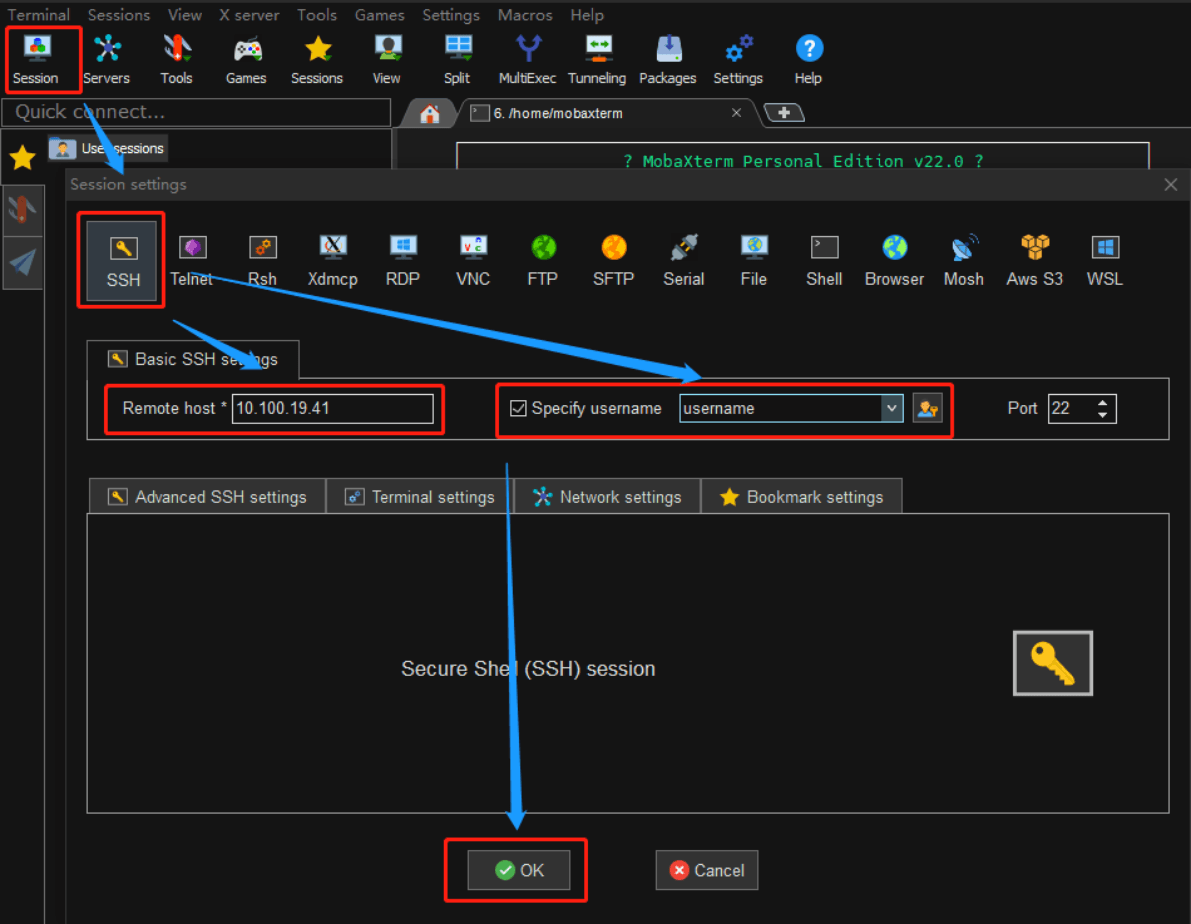
Open MobaXterm and follow the steps in the figure below: enter the login node IP address for the corresponding cluster, enter the login username (use your actual name; 'username' is used as an example below), and press Enter to input the password to log in.
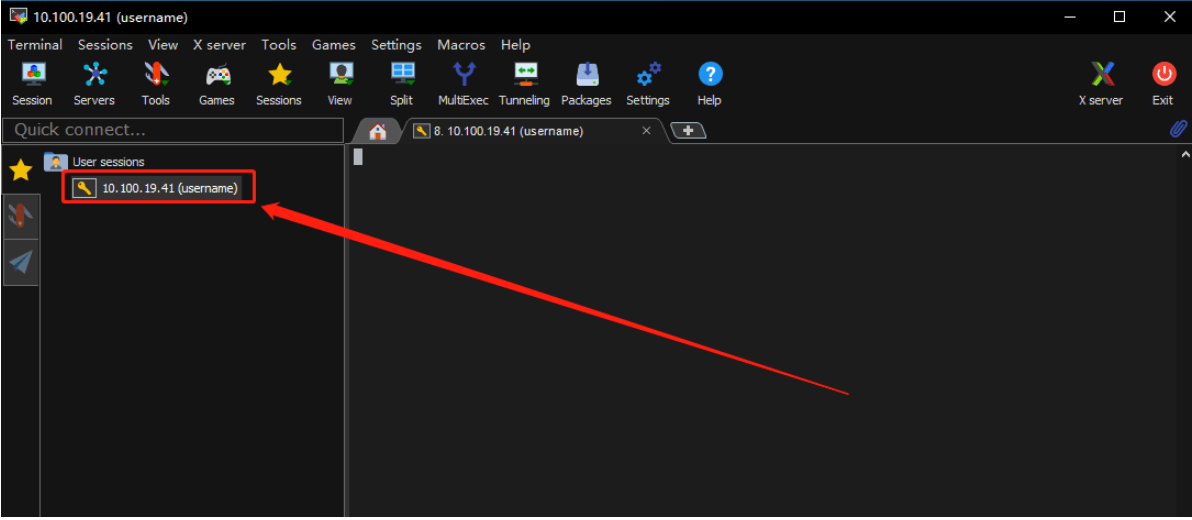
After the first successful login, subsequent logins only require clicking the previous session in the left sidebar.
2. Login using the SSH command line (e.g., on macOS or Linux systems; using MobaXterm as an example)
The password is not displayed in plain text during input; enter it normally.
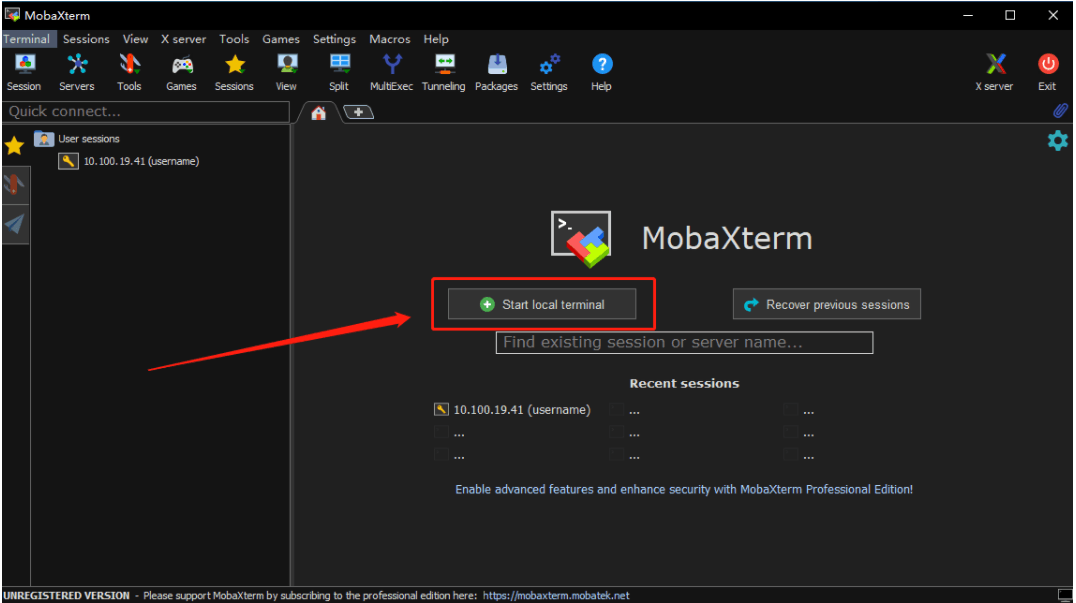
Open MobaXterm and click the following button:
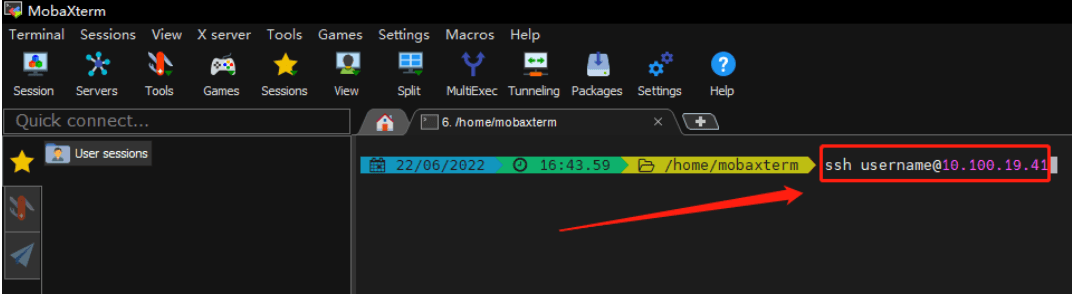
Enter the following command, press Enter, and input the password to log in (use your actual username; 'username' for Shanhe Cluster 1 is used as an example below):
ssh username@10.100.19.41
Appendix: MobaXterm troubleshooting
If you encounter the error '/etc/ssh_config line 1: Missing argument.', as shown below:
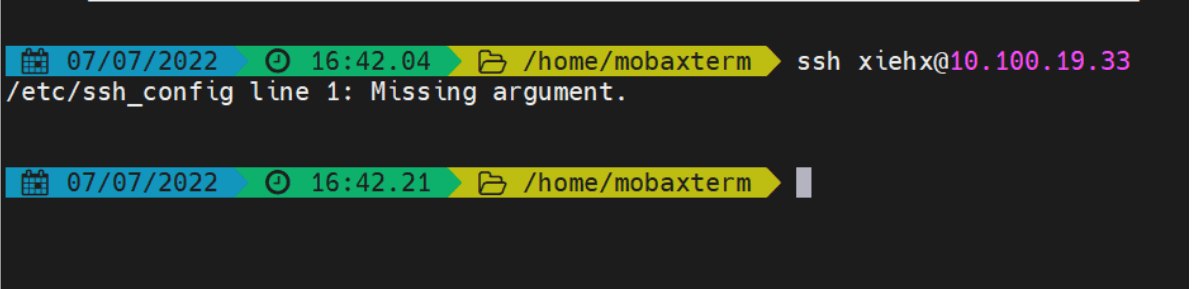
To resolve this, edit the '/etc/ssh_config' file causing the error. Add or modify the content within the quotes on the first line to match the current computer's username. For example, if the current computer's username is 'user':